Design Invitations, Greetings, and Restored Photos
Design Invitations, Greetings, and Restored Photos
1 Course position and tonight’s promise
Day 4 opens Module 2. Tonight you will write a safe image prompt for a fictional housewarming invitation, then use editing tools to restore and lightly colourise a fictional old family photo, checking rights and watermarks before saving either result to your challenge portfolio.
2 What you will learn and why it matters
- Describe an image prompt's subject, style, setting, and constraints in plain language.
- Choose an aspect ratio and invitation type that match how guests will see it.
- Type reliable names and dates yourself instead of trusting AI-rendered text.
- Use inpainting and outpainting to remove, replace, or expand image content deliberately.
- Restore and colourise an old photo while treating the result as a labelled guess, not a fact.
- Check commercial rights, watermarks, and consent before sharing or printing any image.
An image prompt shapes what a tool attempts to draw. It cannot guarantee accurate text, real identities, or usage rights—you verify all three.
3 A familiar situation: diagnose before you prompt again
Fictional sample values: Priya is planning a housewarming and wants an invitation, plus a restored photo of her grandmother for the party table. Her first three attempts each have a different visible problem. Predict the missing fix before revealing it; do not use real addresses, phone numbers, or someone else's photo without permission.
| Failure symptom | Predict the missing fix |
|---|---|
| The invitation text reads “Statuday 14th Novimber”. | Type the date yourself; do not trust AI-rendered text. |
| The portrait crops out Grandma's shoulders awkwardly. | Choose a taller aspect ratio before generating again. |
| The restored photo gives Grandma a stranger's face. | Treat it as an unverified guess; compare with a real photo and redo with a gentler prompt. |
4 Simple explanation, then accurate vocabulary
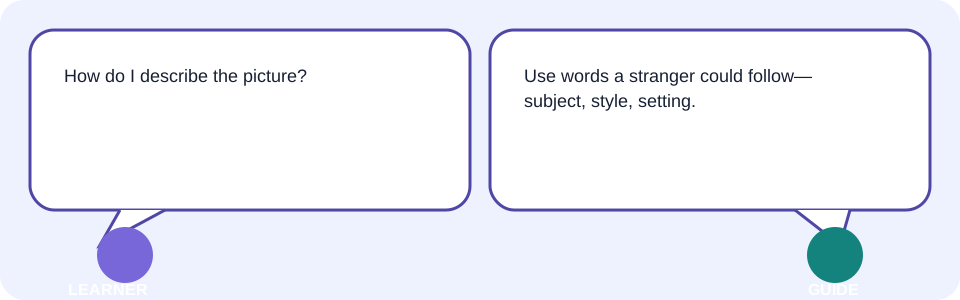
An image prompt is a written description that tells a tool what to draw, edit, or restore. Composition describes how subjects and space sit in the frame; aspect ratio is the image's width-to-height shape. Inpainting changes a chosen area; outpainting extends the canvas beyond the original edges.
| Term | Plain meaning | Accurate meaning |
|---|---|---|
| image prompt | A written description that guides the picture. | Text instructions—subject, style, setting, and constraints—that an image tool uses to generate or edit output. |
| composition | How things are arranged in the picture. | The placement of subjects, space, and focal points within the frame. |
| aspect ratio | The shape of the image. | The proportional relationship between an image's width and height, such as 4:5 or 16:9. |
| inpainting | Editing one part of a picture. | Regenerating pixels inside a selected mask while leaving the rest of the image unchanged. |
5 Image prompt anatomy
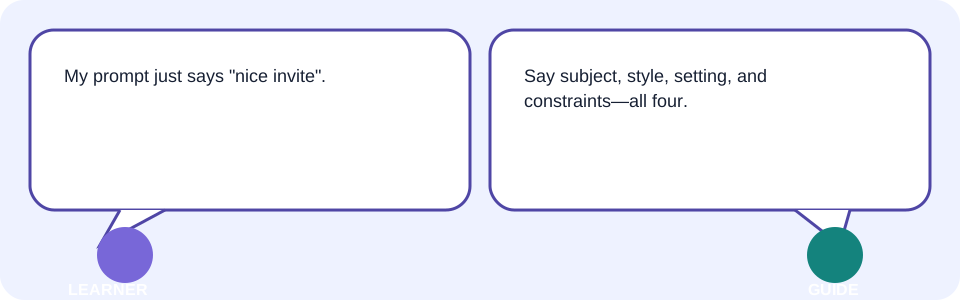
A dependable image prompt names four things: the subject (who or what), the style (watercolour, photo-real, papercut), the setting (indoors, garden, plain background), and constraints (no readable text, no real faces, safe colours). Missing any one of these makes the result harder to predict.
| Failure | Missing part | Before → after |
|---|---|---|
| Invitation looks generic | Setting | “Draw an invitation” → “Draw a warm indoor housewarming scene with string lights and a welcome mat.” |
| Style clashes with the event | Style | “Make it nice” → “Use a soft watercolour style, pastel palette, no photorealistic people.” |
| Tool adds an unwanted logo | Constraint | Add: “no text, no logos, no brand marks.” |
6 Visual styles and aspect ratios
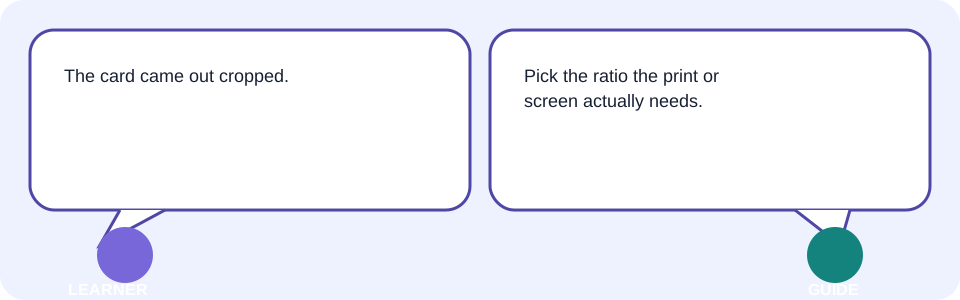
Style sets the visual mood; aspect ratio sets the shape for its destination—square for a social post, portrait for a printed card, landscape for a banner. Choosing the wrong ratio forces an awkward crop later, so decide before generating.
| Destination | Suggested ratio | Why |
|---|---|---|
| Printed invitation card | Portrait (e.g., 4:5) | Matches standard card stock without cropping faces or text blocks. |
| Group chat photo share | Square (1:1) | Displays fully in most chat and social previews. |
| Header banner or venue screen | Landscape (16:9) | Fits wide displays without stretching the scene. |
7 Invitation types
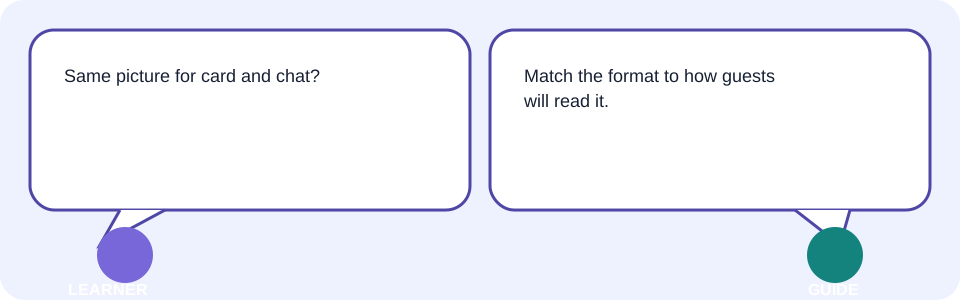
An invitation's type shapes its content, not just its picture: a printed card needs bleed-safe margins and legible fonts; a digital share needs a shorter headline and mobile-safe text size; a video teaser (covered next lesson) needs motion-safe framing. Pick the type before writing the prompt.
| Invitation type | Key requirement | Risk if skipped |
|---|---|---|
| Printed card | Margins, bleed area, print-safe colours | Text or faces are trimmed at the edge. |
| Digital/social share | Short headline, mobile-legible size | Small text becomes unreadable on a phone. |
| Email banner | Compact height, accessible contrast | Banner is cropped in preview panes. |
8 Reliable names and dates
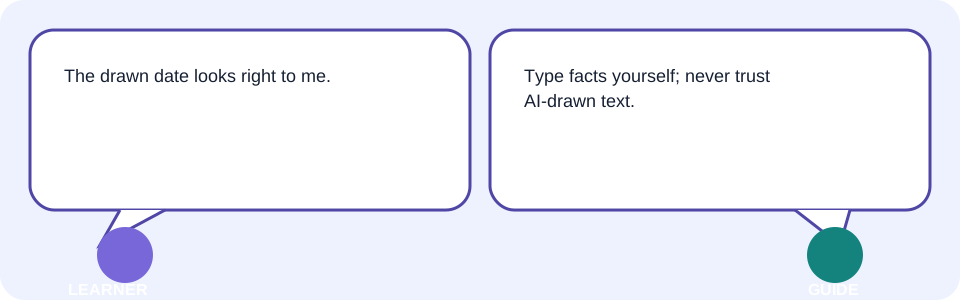
Image tools often misspell rendered text or invent it entirely. Never trust a name, date, time, or address drawn inside an image. Generate the artwork without text, then add real facts yourself in a document or design tool where you can proofread every character.
Generate a housewarming scene: warm indoor party, string lights, soft watercolour style.
Constraint: no readable text, no invented names, no logos.
I will add the event name, date, time, and address separately and proofread them myself.9 Family-photo greetings
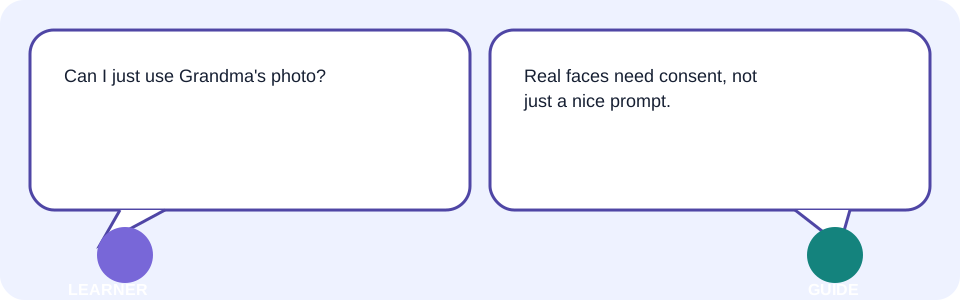
Turning a real family photo into a greeting card involves a real person's likeness. Ask permission from an adult in the photo (or a guardian for a child), avoid uploading images of people who have not agreed, and keep the edit close to the original rather than inventing a new face or scene around them.
- Get permission before editing or sharing someone else's photo.
- State what may change (background, colour) and what must not (facial features, expression).
- Keep a copy of the original alongside the edited greeting.
- Do not caption or tag a real person without their consent.
10 Background/object removal and expansion
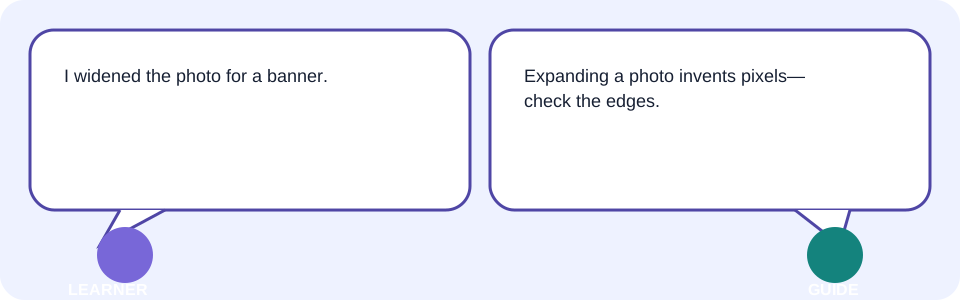
Inpainting removes or replaces a selected area—useful for a cluttered background or an unwanted object. Outpainting extends the canvas beyond the photo's original edges, which means every new pixel outside the original frame is invented. Inspect expanded regions closely; they can add objects, furniture, or people that were never there.
| Task | Tool | Verification needed |
|---|---|---|
| Remove a bystander from the invitation photo | Inpainting | Check the patched area for smudges, repeated patterns, or warped lines. |
| Widen a narrow photo for a banner | Outpainting | Confirm the newly generated edge adds nothing invented, incorrect, or identifiable. |
| Replace a busy background with plain colour | Inpainting | Check that the subject's outline and shadow stay natural. |
11 Photo restoration and colourisation
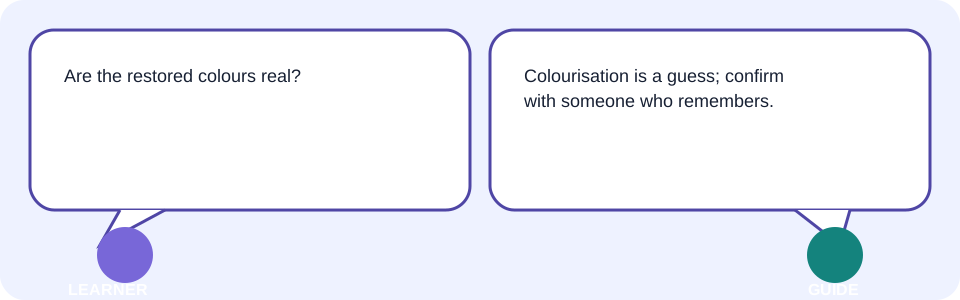
Restoration removes scratches, tears, and fading; colourisation adds plausible colour to a black-and-white photo. Both are educated guesses trained on patterns, not a record of the true colours or repaired detail. Keep the original file, restore a copy, and ask a family member who remembers the photo to confirm details such as clothing or wall colour before treating the result as final.
| Step | Purpose | Human check |
|---|---|---|
| Scan or photograph the original | Preserve the unedited source | Confirm no additional damage happens during scanning. |
| Restore scratches and tears | Repair visible damage | Compare damaged areas with any similar surviving photo. |
| Colourise | Suggest plausible colours | Ask someone who remembers the scene to confirm or correct colours. |
12 Rights, watermarks, and verification
Before printing or sharing any generated or edited image, confirm what the tool's current terms allow: personal use, commercial use, watermark removal, and ownership of the output. A free tier may add a watermark or restrict commercial use; a small-business greeting card is a commercial use and needs its own rights check, separate from a personal housewarming invitation.
| Use case | Rights question to confirm | Where to check |
|---|---|---|
| Personal housewarming invitation | Does personal-use output need attribution or a watermark? | The tool's current terms of service. |
| Small-business greeting card for sale | Does the plan include commercial usage rights? | The tool's current pricing/commercial-rights page. |
| Restored family photo shared publicly | Does the subject (or guardian) consent to public sharing? | A direct conversation with the person or family, not the tool. |
13 Interactive process model: prompt, edit, verify
The event-facts card is the learner's real input; the prompt-builder is the anatomy decision; the draft card is the tool's attempt; the text-and-likeness gate is where rendered text and faces are verified; the editor-correction stage is where inpainting/outpainting fixes issues; the last card is the exported invitation. This simplified picture does not expose hidden model reasoning.
| Static before | Static after |
|---|---|
| Make an invitation for a party. | Warm indoor housewarming scene, soft watercolour style, string lights, portrait ratio, no readable text, no invented logos. I will add the real date and address myself. |
14 Facilitator-led live demonstration: one ratio mismatch
Start with the fictional square-ratio invitation that crops the centrepiece. Intentionally keep the square ratio because it “looked fine in the small preview.” Show why that is a mismatch: a print-ready card needs portrait framing, not a preview-sized guess. Diagnose the crop and switch the aspect ratio and prompt together.
- Use the tool's current New image or Edit equivalent with a fictional prompt.
- Generate the square-ratio draft and identify the cropped centrepiece.
- Rebuild the prompt with a portrait ratio and the same style and constraints.
- Compare the new draft against the card's actual print dimensions.
- Save the before/after and state why the ratio decision changed.
15 Your Invitation & Restoration Checklist
| Fictional step | What to verify |
|---|---|
| Prompt anatomy | Subject, style, setting, and constraints are all stated. |
| Aspect ratio | Ratio matches the print or screen destination. |
| Rendered text | No AI-drawn name, date, address, or logo is trusted; real facts typed manually. |
| Consent | Any real person's photo has permission to edit and share. |
| Edit region | Inpainted/outpainted areas checked for invented detail. |
| Restoration | Colours and repairs labelled as an estimate, confirmed where possible. |
| Rights | Personal vs. commercial use and watermark terms checked. |
Save this as “Day 4 — Invitation & Restoration Checklist.” For each fictional item, keep the prompt, the verification evidence, and a one-line reflection.
16 Learner lab: build your own safe invitation and restoration
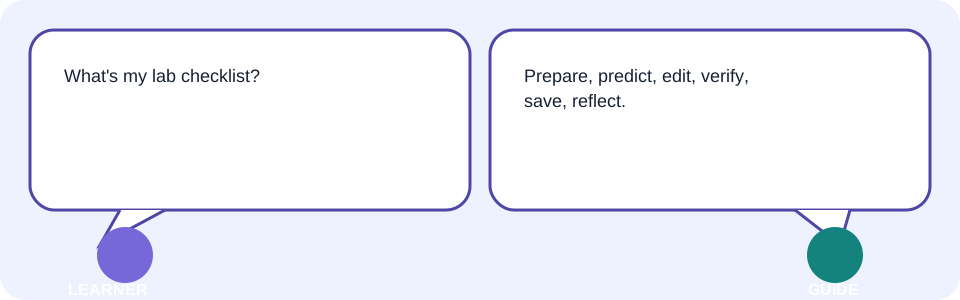
- Prepare one fictional event's facts and one non-sensitive practice photo (your own or a clearly licensed sample).
- Predict the aspect ratio and style the destination needs before generating.
- Write a prompt naming subject, style, setting, and constraints; generate a first draft.
- Use inpainting or outpainting only where needed, and inspect the edited region closely.
- Add real names, dates, and addresses yourself; never trust rendered text.
- Check watermark and commercial-rights terms for your intended use; export/save and add a one-line reflection.
| Checkpoint | Evidence to show |
|---|---|
| Safe inputs | Fictional facts or a permitted, non-sensitive photo. |
| Prompt anatomy | Subject, style, setting, and constraints are all named. |
| Correct ratio | Output matches the print or screen destination without cropping. |
| Verified text | Real facts typed and proofread outside the image. |
| Edited region checked | Inpainted/outpainted areas show no invented or wrong detail. |
| Rights confirmed | Personal/commercial use and watermark terms checked. |
17 Behind the scenes, limitations, safety, and verification
- Rendered text inside an image is frequently wrong; never trust a drawn name, date, or address.
- Restoration and colourisation are plausible guesses, not a record of the true original.
- Outpainting invents every pixel beyond the original frame; it can add objects that were never there.
- A generated likeness of a real person is not that person's actual current appearance or consent.
- Free-tier tools may add watermarks or restrict commercial use.
- Style and quality vary by tool, prompt, and version; today's result may not repeat tomorrow.
18 Common confusion, errors, troubleshooting, and best practices
| Symptom | Likely cause | Safe fix |
|---|---|---|
| Invitation text is misspelled | Rendered text trusted | Regenerate with a no-text constraint; add real text yourself. |
| Card is cropped when printed | Wrong aspect ratio chosen | Match the ratio to the destination before generating. |
| Restored face looks unfamiliar | Colourisation/restoration treated as fact | Compare with a real photo or a family member's memory; relabel as an estimate. |
| Edited area looks smudged or repeated | Inpainting mask too small/large | Adjust the mask and regenerate just that region. |
| Background addition looks wrong | Outpainting extended too far | Reduce the expanded area or crop it out. |
| Card can't be sold or printed commercially | Rights not checked | Confirm commercial-use terms before printing or selling. |
| Photo used without asking | Consent skipped | Get permission first; use a fictional or licensed sample instead. |
- Best practice: name subject, style, setting, and constraints every time.
- Best practice: keep the unedited original file next to every restoration.
- Trainer tip: ask “What in this image was verified by me, and what was only generated?”
19 Takeaways
- Build every image prompt from subject, style, setting, and constraints.
- Choose the aspect ratio and invitation type for the real destination before generating.
- Never trust AI-rendered names, dates, or addresses—type and proofread them yourself.
- Treat restoration and colourisation as labelled estimates, and get consent for real faces.
- Check watermark and commercial-rights terms before printing, selling, or sharing.
Module 2 continues when you can explain what your prompt controlled, what you verified, and what rights you checked.
20 What comes next
Next is Topic 05—Produce a 30-Second Video Invitation. You will carry this invitation's verified facts and style choices into a short video, checking motion-safe framing and the same rights and consent rules for moving images.
- Reopen your Invitation & Restoration Checklist.
- Keep your verified event facts and chosen style ready.
- Note one motion or timing question you predict the video lesson will need to answer.
19 Knowledge check—submit before feedback
Pick an answer for each question, then press Check answer. (Notes are disabled in this tab.)
1. What must every dependable image prompt name?
2. Why should you never trust a date rendered inside a generated image?
3. What does outpainting do?
4. Before restoring and sharing a real person's old photo, what should you do first?
5. A small-business greeting card is being sold. What must be checked that a personal invitation may not need?
20 Exercises—attempt before reveal
Try answering each question yourself before expanding the model answer.
1. Modify: Change the invitation's audience or one negative constraint (for example, no real faces) and record what changed. Reveal after attempting.
2. Extend: Add a rights/verification checklist item or a second safe practice photo. Reveal after attempting.
3. Apply: Use the method on a real, non-sensitive personal invitation or photo task. Reveal after attempting.
4. Optional challenge: Teach the workflow to someone else and capture their question—not their personal data. Reveal after attempting.
21 Quick-review cards
Click a card to reveal the back.
Image prompt
Aspect ratio
Inpainting
Outpainting
Commercial rights
22 Facilitator and interview Q&A
1. Explain image prompt anatomy simply.
2. Demonstrate the invitation-to-restoration workflow.
3. Diagnose a weak restoration result.
4. Identify a privacy and accuracy risk.
5. Adapt the workflow to another audience.
23 Glossary
- image prompt
- Simple: a written description that guides an image generator. Technical: text instructions—subject, style, setting, and constraints—used by an image tool to generate or edit output. Page: /Tutorials/ai-for-everyone-04-design-invitations-greetings-and-restored-photos
- composition
- Simple: how subjects and space are arranged in the frame. Technical: the placement of subjects, space, and focal points within an image's frame. Page: /Tutorials/ai-for-everyone-04-design-invitations-greetings-and-restored-photos
- aspect ratio
- Simple: the width-to-height shape of an image. Technical: the proportional relationship between an image's width and height, such as 4:5 or 16:9. Page: /Tutorials/ai-for-everyone-04-design-invitations-greetings-and-restored-photos
- inpainting
- Simple: editing or removing a chosen area of an image. Technical: regenerating pixels inside a selected mask while leaving the rest of the image unchanged. Page: /Tutorials/ai-for-everyone-04-design-invitations-greetings-and-restored-photos
- outpainting
- Simple: extending an image beyond its original edges. Technical: generating new pixels outside an image's original frame to enlarge the canvas. Page: /Tutorials/ai-for-everyone-04-design-invitations-greetings-and-restored-photos
- watermark
- Simple: a visible or hidden mark showing image origin or licence. Technical: an embedded mark identifying an image's source, plan tier, or usage restriction. Page: /Tutorials/ai-for-everyone-04-design-invitations-greetings-and-restored-photos
- commercial rights
- Simple: permission to use an image for paid or business purposes. Technical: licence terms that state whether generated or edited output may be sold or used commercially. Page: /Tutorials/ai-for-everyone-04-design-invitations-greetings-and-restored-photos